








Key takeaways
- Google is retiring the Nest app on Android, iOS and the web (home.nest.com) on January 25, 2027. After that, you control Nest thermostats, cameras, doorbells, smoke alarms and locks from the Google Home app.
- Your devices keep working, and Google says your schedules, settings and camera video history move over automatically starting that day.
- The two things that won’t happen on their own: switching an old Nest account to a Google Account, and downloading clips you saved on home.nest.com.
- If you never migrate an old Nest account, Google says it will start deleting that account’s data and subscriptions on March 25, 2027.
- Nest Aware (1st gen) subscribers get moved to Google Home Premium at no extra cost, according to Google.
- Separately, Gemini for Home replaces Google Assistant on Google’s smart speakers and displays on August 2, 2027.
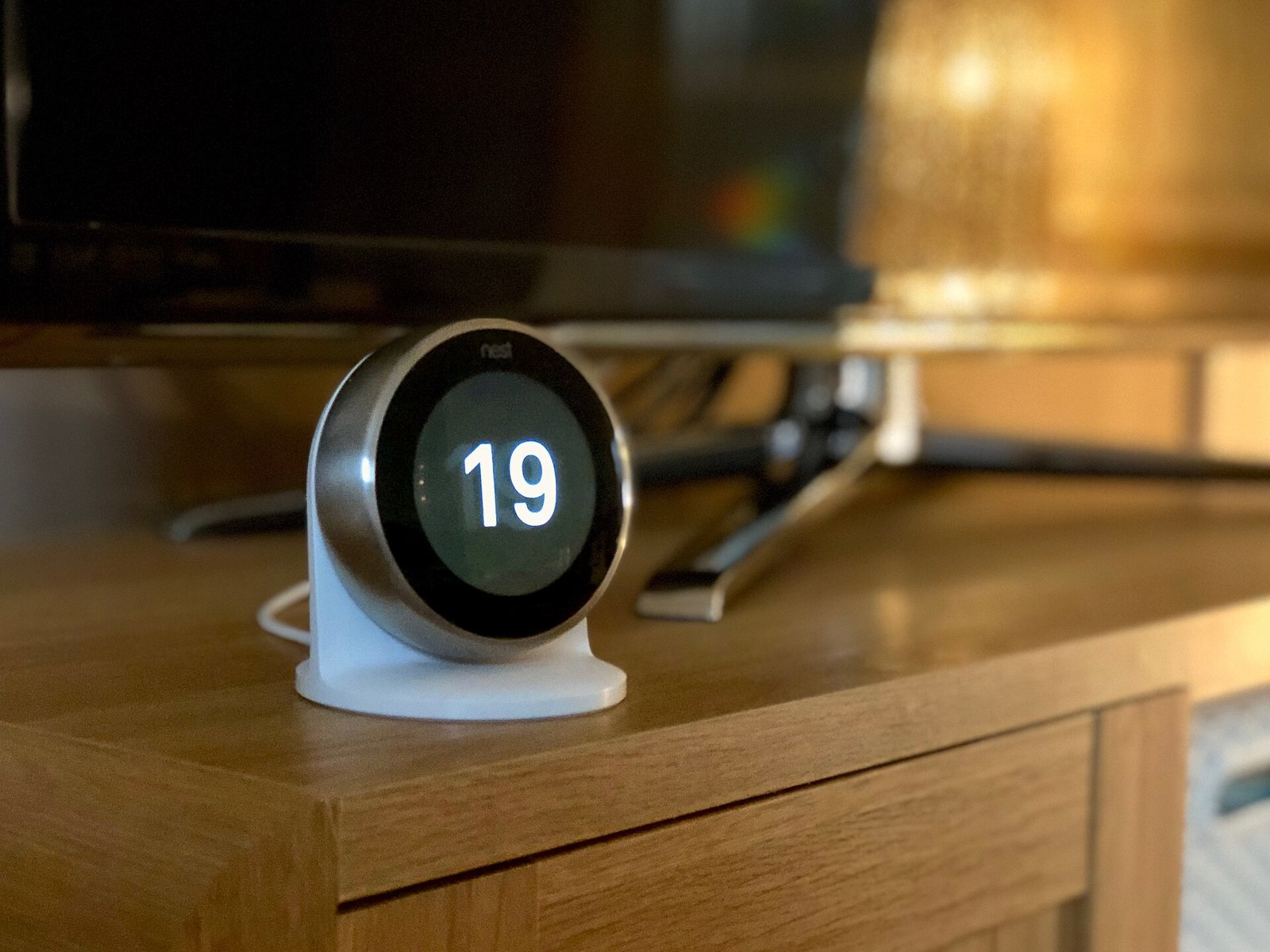
Image: George Lane / Wikimedia Commons (CC BY 2.0)
If you’ve got a Nest thermostat on the wall or a Nest doorbell by the front door, there’s a deadline you should put on your calendar. Google announced on Friday, Nov. 20, that it’s shutting down the Nest app for good on January 25, 2027, and moving everything into the Google Home app.
The good news: your hardware isn’t going anywhere. What changes is the app you use to control it, and longtime Nest owners have a couple of steps to take themselves. Skip them and you could lose saved videos or, eventually, your whole account.
Here’s what’s changing, who needs to act, and how to do it.
What Google announced
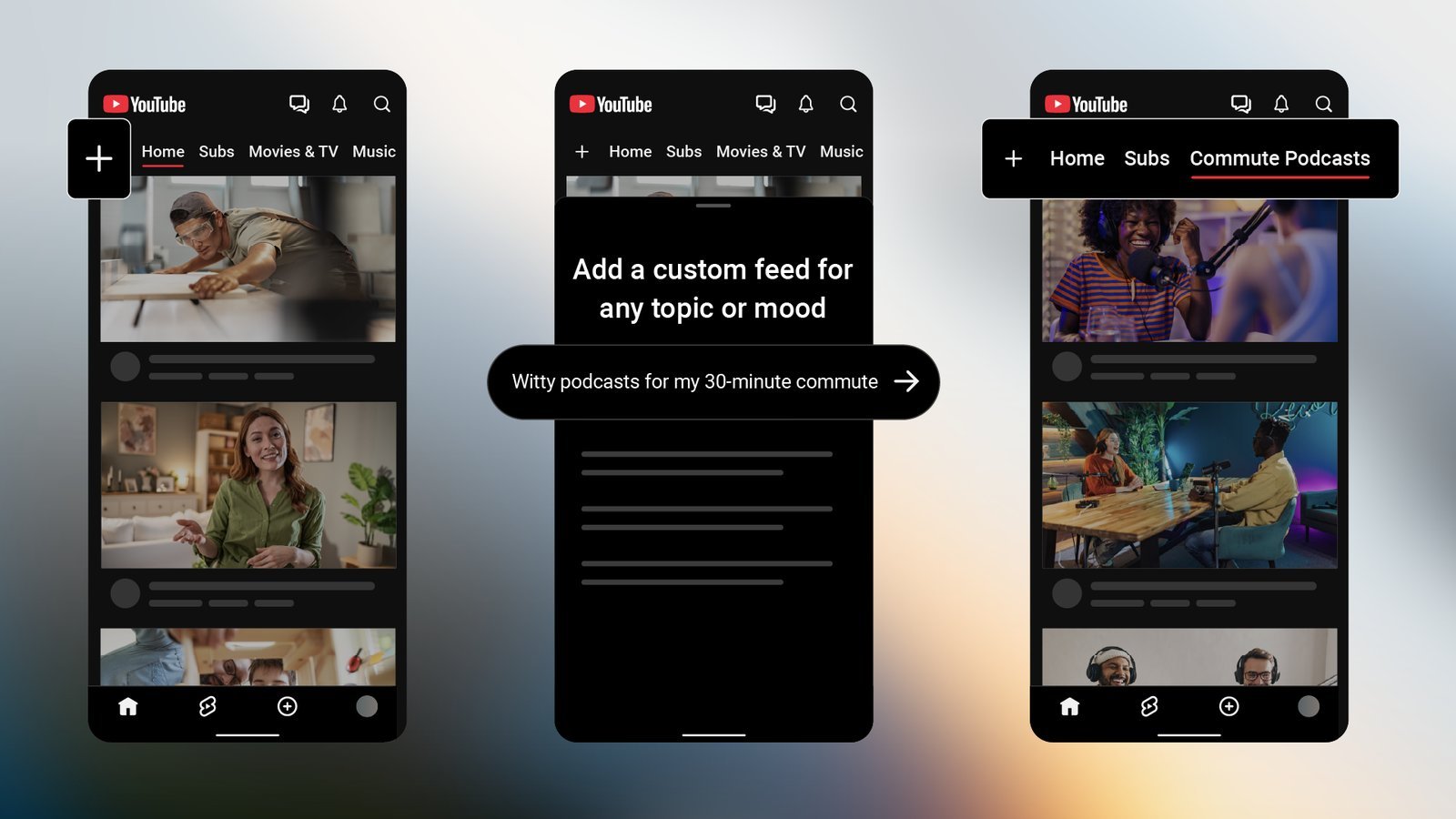
In a post on its Google Home & Nest community forum, Google laid out two changes. The first is what it calls “One App Experience”: all Nest devices move from the Nest app into the Google Home app, and the Nest app is retired on January 25, 2027. That includes the phone apps and the web version at home.nest.com. The Verge, 9to5Google and Android Authority all reported the same date.
The second change, covered further down, swaps Google Assistant for Gemini on Google’s smart speakers and displays.
Google’s reasoning: many Nest owners have been juggling two apps for years, and retiring one lets it focus its engineering and security work on Google Home. If this sounds familiar, Microsoft is doing something similar with its to-do app, and we walked through that switch in Microsoft To Do Is Shutting Down: How to Save Your Lists and Switch.
Do you need to do anything?
It depends on when you set up your Nest account. Here’s the quick way to tell.
You probably don’t need to do much if…
You started using the Nest app after August 19, 2019. Google’s help pages say every new Nest sign-in since that date has required a Google Account, which tech site MakeUseOf also points out. If that’s you, your account is already the right kind. Install Google Home if you haven’t, sign in with the same Google Account, and you’re mostly set.
You need to act if…
You set up your Nest gear before that date and still sign in with a separate Nest email and password. Google’s own test: open the Nest app’s sign-in screen. If you tap “Sign in with Google” and your home shows up, you’re already linked. If you use “Sign in with Nest” with a separate Nest password, you need to do the one-time migration described below.
Timing matters. According to Google’s Nest transition page, if you haven’t linked your old Nest account to a Google Account, you can still download or delete your data until March 25, 2027. After that, Google says it will start deleting unmigrated Nest accounts, along with their data and subscriptions. The Verge and Android Authority reported the same March date. So March is the “use it or lose it” deadline, but you lose app control in January.
How to get ready, step by step
Step 1: Download the Google Home app
Get Google Home from the App Store on iPhone or Google Play on Android. You’ll need a Google Account to use it.
That Google Account will soon be the key to your front-door camera and thermostat, so it’s worth locking down. Our guide on how to set up passkeys on your phone and Google account makes it much harder to hijack.
Step 2: Migrate an old Nest account (only if you have one)
Based on Google’s account FAQ, the steps are:
- Update the Nest app to the latest version and open it.
- Go to Settings > Account and make sure you’re signed in to the Nest account you want to move.
- Tap Migrate to a Google Account.
- Choose Continue with Google and pick the Google Account you want to use. Google suggests the same one you already use with Google Home or Assistant, and recommends a personal account rather than a work or school one.
- Follow the prompts to allow access, review the privacy terms and finish.
Before you tap that button: Google says migration can’t be undone, people you share your home with may need to be re-invited through Google Home, and watching cameras through the Nest app on Apple TV or Android TV stops working.
Step 3: Download your saved video clips
This one catches people off guard. If you have an older Nest camera or doorbell and you’ve saved clips to the Clip Library on home.nest.com, those saved clips will not move to Google Home. Google, 9to5Google and Android Authority all flagged this.
To save them, sign in at home.nest.com on a computer before January 25 and use the one-click Download All button. Keep the files somewhere safe, like a cloud drive or an external drive.
Your regular recorded history is different: Google says event recordings and 24/7 history transfer to Google Home automatically.
Step 4: Move your devices now, or let Google do it
Starting January 25, Google says it will automatically move your supported Nest thermostats, cameras, doorbells, smoke and CO alarms and locks into Google Home, along with your schedules and settings. No QR codes or re-setup needed, per Google’s FAQ.
Want it done now? Google says thermostats, Nest Protect alarms and Nest x Yale locks show up in Google Home as soon as your account is linked. Older cameras and doorbells can be moved early from each camera’s settings in Google Home, though Google warns each transfer needs a software update and takes a little while.
Will my Nest device still be supported?
Google says no Nest devices lose support because of this change, and 9to5Google reported the same. According to Google’s support list, that covers:
- Thermostats: Nest Learning Thermostat (3rd and 4th gen), Nest Thermostat E, Nest Thermostat (2020) and Nest Temperature Sensors.
- Cameras and doorbells: the original wired Nest Cam Indoor and Outdoor, Nest Cam IQ, Nest Hello, the Nest Hub Max camera, and all Nest cams and doorbells launched in 2021 or later.
- Alarms: Nest Protect (2nd gen), up to the expiration date printed on the device.
- Locks: Nest x Yale Lock with Nest Connect.
Notice the thermostat list starts at the 3rd generation. Android Authority points out that Google has already dropped some older hardware, like early Nest thermostats, and this change won’t bring them back. If yours is on the way out, we covered other ways to cut your winter energy bill in How to Lower Your Heating Bill This Winter: 6 Cheap Fixes.
What about Nest Aware subscriptions?
If you pay for the original Nest Aware (1st gen) plan, Google says it’ll move you to Google Home Premium starting January 25. Google and 9to5Google both say that happens at no additional cost and without re-entering a credit card “at this time.” Google says you’ll get an email with the details closer to the date. Read any renewal notice carefully so a future price change doesn’t surprise you.
Shopping for smart home gear this Black Friday?
If you pick up a Nest thermostat, cam or doorbell in a holiday sale, set it up directly in Google Home so you’re not doing the job twice. And before you buy, check whether the “deal” is real. Our guide on how to check price history shows you how.
Next up: Gemini replaces Google Assistant on speakers
On August 2, 2027, Gemini for Home takes over from Google Assistant on Google’s speakers and displays. Google says the upgrade is free and supported devices will keep working. To switch early where it’s available: in the Google Home app, tap your profile icon at the top right, then tap Get Started on the “Set up Gemini for Home” banner. On a computer, go to home.google.com/gemini.
The bottom line
For most people, this is a short to-do list: install Google Home, check how you sign in, and grab any saved clips from home.nest.com. Do it before the holidays get busy, and you won’t be scrambling in late January when the Nest app goes dark.
Sources
- Google Home & Nest Community: A Modern Foundation for Your Smart Home: Changes Coming to Google Assistant and Nest App
- Google Home and Nest Help: Nest app transition to the Google Home app
- Google Home and Nest Help: FAQs about accounts for the Nest app
- Google Home and Nest Help: Transfer Nest devices to Google Home
- The Verge: Google says it’s going to shut off Google Assistant on smart speakers next year
- 9to5Google: Google retiring Nest app and Google Assistant on speakers, displays in 2027
- Android Authority: Google will shut down the Nest app in January 2027
- MakeUseOf: The Nest app is shutting down, and your saved clips won’t make the move