




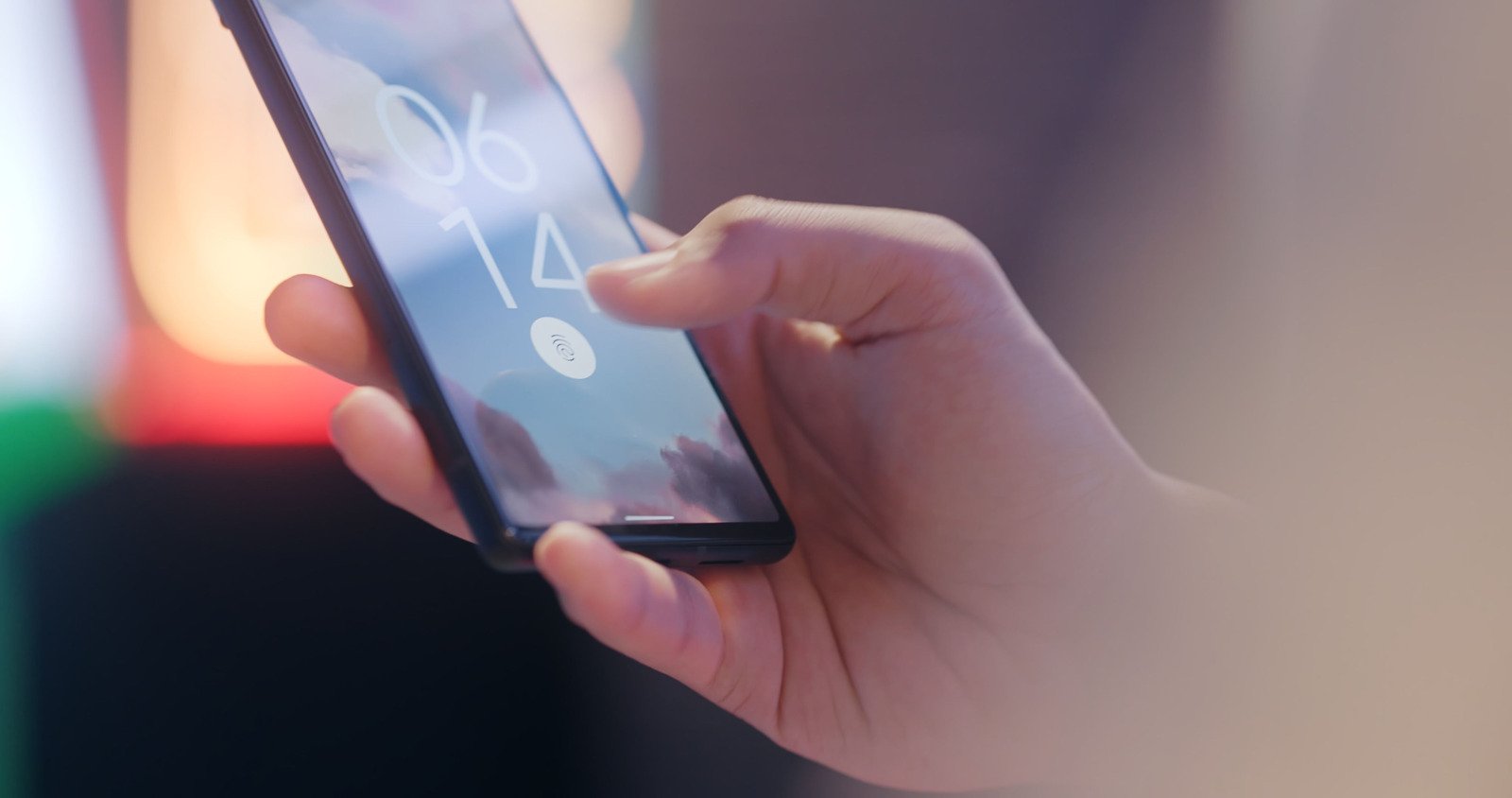
Passwords are a weak point for almost everyone. People reuse them, forget them and sometimes type them into fake websites without realizing it. Passkeys are designed to fix that. You sign in with your fingerprint, face or phone screen lock, and there is no password to steal.
This guide explains what passkeys are in plain language, then walks you through setting one up on your Google Account and on other sites, using an iPhone or an Android phone. It takes about ten minutes.
What is a passkey?
A passkey is a replacement for a password. According to Apple’s security documentation, your device creates a unique pair of cryptographic keys for each account. One key is public and stored on the website’s server. The other, private key stays on your device and is what actually signs you in. The website never learns the private key, so there is no shared secret that can leak in a data breach or be typed into a fake page.
Google describes it similarly. Its Account Help page says that unlike passwords, passkeys can’t be shared, copied, written down or accidentally given to someone else, which makes them more secure against phishing. It also says your fingerprint or face data stays on your device and is never shared with Google.
Why bother?
Many accounts now ask for a code texted to your phone as a second step. That is better than nothing, but scammers have found ways around it. In a post from the U.S. Cybersecurity and Infrastructure Security Agency (CISA), a senior advisor described an attack where a fake support caller gets someone to enter a username, password and the six-digit code on a look-alike site. CISA calls these “MFA bypass” attacks and says they are happening in the wild. It adds that phishing-resistant options, such as security keys, stop them, and that any form of multi-factor authentication is still better than none.
Passkeys are built on the same kind of technology. Because a passkey only works with the real website it was created for, a fake page can’t collect it.
Before you start
Check these basics first, based on Google’s requirements:
- Your phone: Android 9 or newer, or iOS 16 or newer.
- Your computer (if you use one): Windows 10, macOS Ventura or ChromeOS 109 or newer.
- Your browser: Chrome 109, Safari 16, Edge 109 or Firefox 122, or newer.
- A screen lock on your phone. A PIN, fingerprint or face unlock must be turned on.
- On an iPhone: iCloud Keychain and two-factor authentication must be turned on, according to Apple.
- Updates: Google recommends keeping your operating system and browser up to date so passkeys work properly.
Step 1: Create a passkey for your Google Account
Your Google Account is a good first choice because it often unlocks email, photos and other services. Google’s steps are:
- On your phone or computer, go to myaccount.google.com/signinoptions/passkeys.
- Sign in or verify your identity if asked.
- Tap Create a passkey.
- Follow the prompts and confirm with your fingerprint, face or screen lock.
Two things to know. First, Google says you may need to wait up to 7 days before a newly created passkey is available at sign-in. Second, creating a passkey doesn’t remove your existing password or recovery options, so you can still sign in the old way if needed.
Important warning about shared devices
Google is clear that you should only create passkeys on devices you personally own. Even if you sign out of your Google Account, anyone who can unlock your device can access the account once a passkey exists. Don’t create one on a shared family tablet or a work computer you don’t control, and use a strong screen lock on your phone.
Google also notes that if your account has 2-Step Verification, a passkey skips the second step, because using the passkey already proves you have your unlocked device.
Step 2: Add passkeys on other sites and apps
Not every site supports passkeys yet. When one does, the steps are similar, though the screens vary.
On an iPhone
- Open the site or app and sign in with your usual password.
- Go to the account or security settings.
- When you see the option to save a passkey, tap Continue.
Apple says the passkey is stored in your iCloud Keychain, where it isn’t visible to anyone, including Apple, and you can find it in the Passwords app. Next time, tap your account name on the sign-in screen and confirm with Face ID, Touch ID or your passcode.
On an Android phone
- Open the app or site and sign in.
- If it doesn’t offer a passkey right away, look in the app’s settings.
- Tap Create a passkey, check the information shown and confirm with your screen unlock.
According to Android Help, passkeys can be saved in Google Password Manager or a third-party manager such as Samsung Pass, Keeper or 1Password. You can choose which one in Settings, under Passwords, passkeys & accounts.
If you don’t see a passkey option, the site doesn’t support it yet. Keep a strong, unique password there, and turn on two-step verification if it’s offered.
Step 3: Sign in on a computer using your phone
You don’t need to set up a separate passkey on every computer. Google explains how to use your phone’s passkey:
- On the computer’s Google sign-in page, enter your username.
- Click Try another way, then Use your passkey.
- A QR code appears. Scan it with your phone’s camera. Make sure Bluetooth is on.
- Tap the passkey option on your phone and confirm with your fingerprint, face or PIN.
Apple’s steps for a computer that isn’t signed in to your Apple Account are similar: choose an option like “Passkey from nearby device,” scan the QR code with your iPhone camera and approve.
What if you lose your phone?
This is the question most people worry about, and it has a good answer. Apple says passkeys sync across your devices through iCloud Keychain and can be recovered even if you lose all your devices, using a protected recovery process. If you use Google or another password manager, passkeys can be saved there instead, which also lets you use them on other devices.
If a phone with a Google passkey is lost or stolen, Google says to remove the passkey and sign the device out from your account’s Security page under Your devices. You can see all devices with access at google.com/devices. Also keep your recovery options current, such as a backup email address or phone number, so you can get back in.
A simple plan to follow this week
- Start with email. Your main email account can reset passwords for many other accounts, so protect it first.
- Add your Apple or Google account. These often hold your photos, backups and payments.
- Then your banks and shopping accounts, if they offer passkeys.
- Keep two-step verification on everywhere that doesn’t support passkeys.
- Use a lock screen you’d trust a stranger not to guess. A passkey is only as safe as the device that holds it.
Passkeys won’t stop every scam. If someone convinces you to hand over access to your phone or to share a code, no technology can help. But they remove one of the most common weak points, and once they’re set up, signing in is usually faster than typing a password.
Sources
- Google Account Help: Sign in with a passkey instead of a password
- Android Help: Sign in to your applications and websites with passkeys
- Apple Support: Use passkeys to sign in to websites and apps on iPhone
- Apple Support: About the security of passkeys
- CISA: Phishing Resistant MFA is Key to Peace of Mind